Starter Project Structure
Now that you’ve got your modding environment set up, let’s go over what files and folders came with the Starter Project. This page obviously can’t cover every single file in the project, but it will describe the most important ones.
The goal of this page is to provide a high-level overview of what you just downloaded and set up, teaching you about why certain files are there and what you should (or shouldn’t) do with them.
There are no "directions" to follow along with on this page, but feel free to explore the project in the editor and file explorer as you read.
Content Folder
If you open up the Unreal Editor and check out a Content Browser, there’s already quite a bit of stuff in the All > Content folder.
On disk, these files can be found in the Content/ folder of your Project.
However, as described in the next section, these files are data-only placeholders that exist for reference purposes - editing them is not useful.
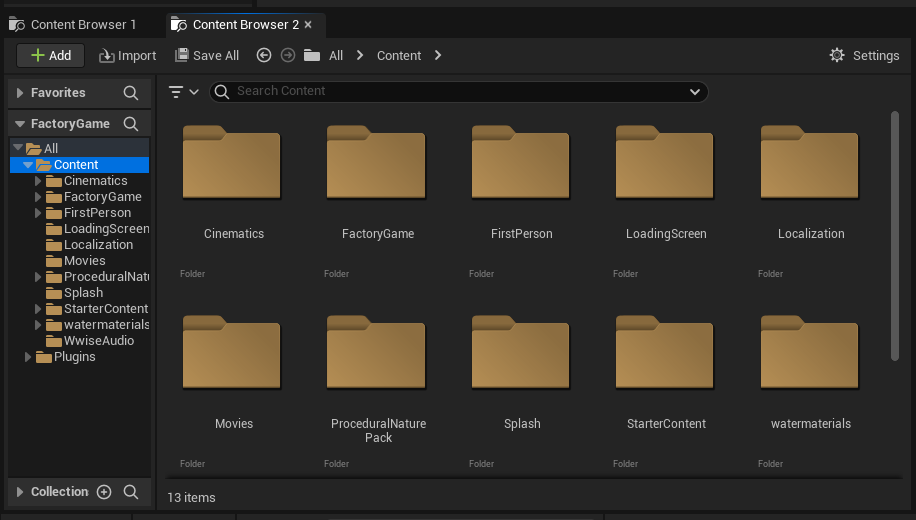
All > Content folderThe Placeholder System
For copyright and download size reasons, the Starter Project does not include the "real" source files for the base game’s assets. Instead, it contains placeholders for those assets. They are essentially fake assets that are in the same place as game’s the "real" content, with some of their data filled in, but that don’t have any code that makes their "real" counterparts work. The SML team produces these placeholders using an automated tool when the game is updated.
These placeholders exist so you can reference base-game content from your own mods. For example, you can use Iron Rods as an ingredient in your own recipes because there is an Iron Rod placeholder asset present in the Starter Project.
The placeholder generator makes a best effort to fill in fields with the correct values, but it’s not always possible to do so, and some content is purposefully excluded. For example, recipe ingredients and quantities will be present, but models and textures are intentionally replaced with blanks. You could open up the placeholders to look at them in the editor, but they won’t look much like the real game assets.
For example, here’s a screenshot of the placeholder for Iron Rods open in the editor. Note the correct item name and description, but white-cube model and white-box icon.
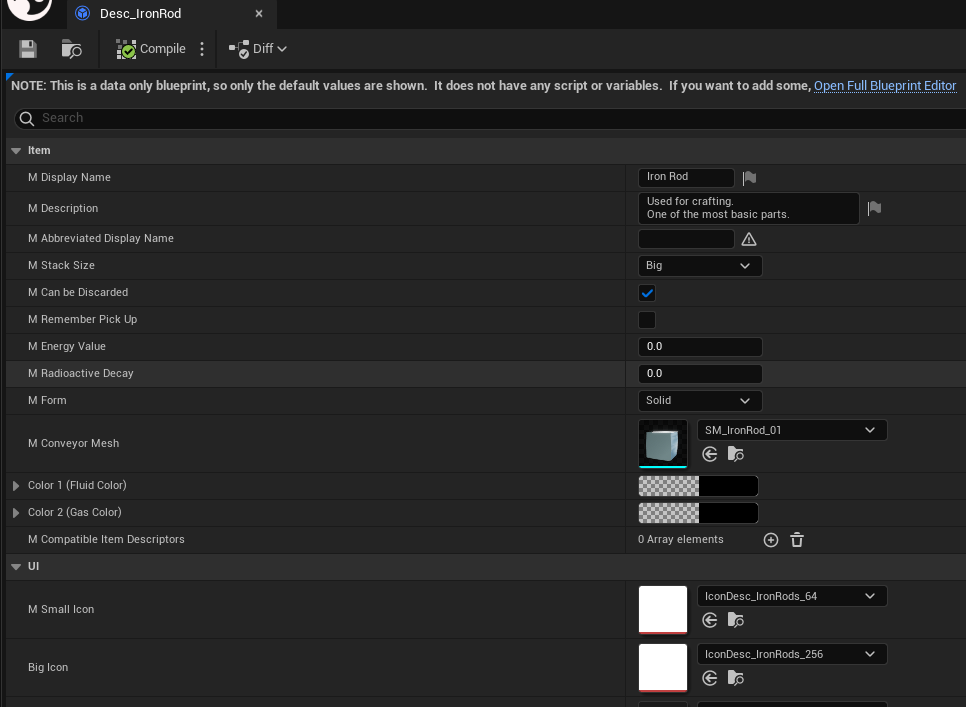
/Game/FactoryGame/Resource/Parts/IronRod/Desc_IronRod.Desc_IronRod)|
Only placeholders for the more common assets types are included in the Starter Project. You may need to manually create placeholders for less common assets like particle systems, animations, and such if you wish to reference them. The process for creating your own placeholders so is covered here. |
Although it is possible to edit these files, it is rarely productive to do so. Think of modifying these files like drawing something in the margin of a textbook you own. You have changed what your book contains, but the textbook publisher is still printing the same original book without your changes. Editing a placeholder asset only changes what it contains for your editor, the game itself never gets those changes. For example, if you edited the iron plates recipe to produce 10 plates per operation, then packaged your mod, the game would be completely unaffected because the changes were never part of a mod. The correct process for modifying existing game content will be covered later in this documentation.
Don’t worry, your mods' files are kept totally separate from these base game placeholders, so it’s easy to keep track of what’s yours.
|
It is possible to generate a personal copy of the Starter Project that includes "real" versions of most of these base game files, allowing you to preview them more accurately in-editor. This process can be very involved and should only be done once you have more modding experience. At that future point in time, more information can be found on the Extracting Game Files page. |
Source Folder
There are a lot of C++ header and source files included in your project.
On disk, they can be found in the Source/ folder.
These don’t appear in the Content Browser unless you have "Show C++ Classes" enabled in your content browser settings.
These are header files (.h) and auto-generated C++ stubs (.cpp).
The header files are provided by Coffee Stain in the CommunityResources/ folder of the game installation,
but the C++ files, similar to the Content placeholders,
are automatically generated skeletons of the files in the correct locations.
These files are required for the editor to offer the correct game assets and classes for you to reference in your mods. Code in these files is executed by the editor in some circumstances, so the SML team will sometimes write custom patched versions to avoid editor crashes.
You should not need to edit any of these files under normal circumstances.
Mods Folder
A few mods are already provided with the Starter Project, either as code examples for you to look at, or because they are required to get the editor project working correctly.
They appear in the All > Plugins section of the Content Browser (for those that contain assets) and are located in the Mods/ folder on disk.
Later on, your own mods' folders will appear in this section as well.
You might need to click on View Options → Show Plugin Content
in a Content Browser to see the Plugins section in the Unreal Editor.
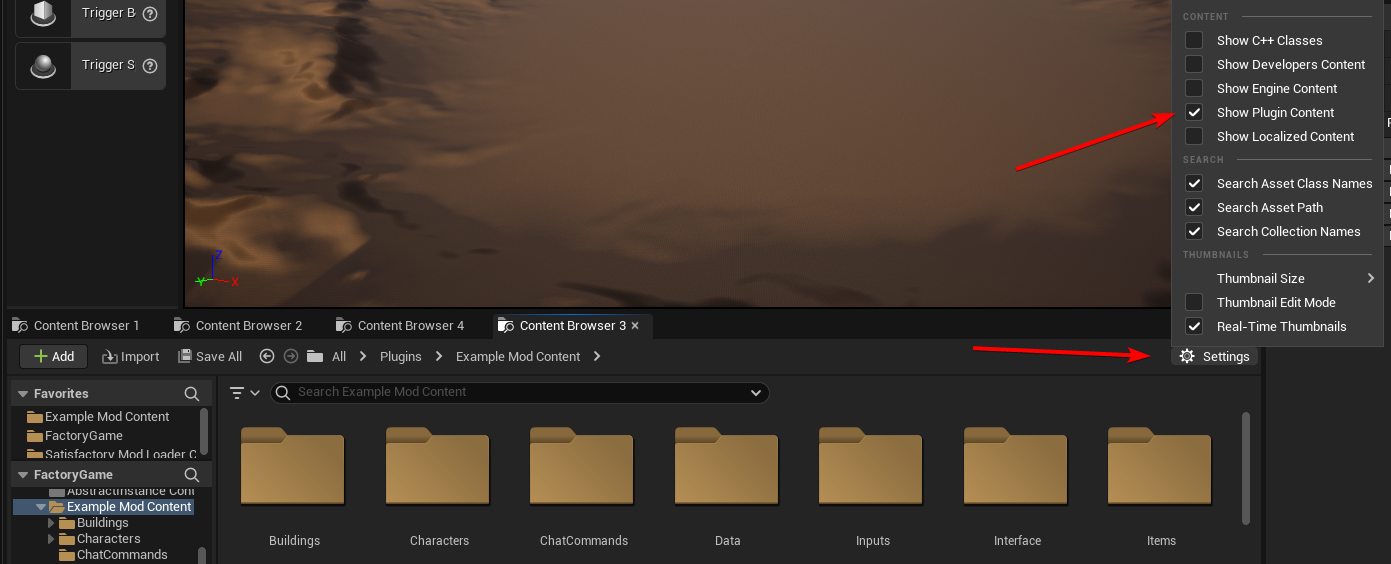
-
-
Editor-only mod to enable other mods to access extra information without modifying the auto-generated C++ stubs.
-
-
Alpakit
-
Editor-only mod that assists with packaging mods for testing and distribution.
-
-
ExampleMod
-
Mod containing example implementations of various modding features. You can build it and try them out yourself! Keep an eye out for comments that explain what things do or why certain choices were made. Some of the examples present in this mod are not explained on this site yet.
-
-
SML
-
The full implementation of the Satisfactory Mod Loader mod.
-
-
-
Editor-only mod that provides helpful utilities to mod creators, such as a mod configuration screen preview and a Research Tree Editor.
-
You should not need to edit any of the provided mod files under normal circumstances.
Plugins Folder
This folder contains base-game project plugins. Depending on the plugin, they may be stubs or a full implementation that has been shared with us by CSS. Although mods are technically also Unreal plugins, we keep all mods out of this folder for clarity and organization purposes.
You should not need to edit these files under normal circumstances.
Config Folder
This folder contains engine configuration files. Its contents are automatically generated from the base game’s configuration and project files. On rare occasions the SML team will manually edit these files to silence irrelevant warnings or prevent editor-time crashes.
You should not need to edit these files under normal circumstances.
Ready to Rumble
|
Remember, editing the project’s placeholder files makes no changes to the game’s actual content or behaviors! |
You should now have a better understanding of what files are included in the Starter Project and how they assist with developing your mod.
In the next section, we’ll walk through creating the base Plugin for your mod, then run through a couple common modding examples to demonstrate how to get started making your own mods.