Reusing Base Game Files
Sometimes you may want want to directly reuse the game’s icons, meshes, gui, etc. for content in your own mod. Doing this is a fairly straightforward process, and you do not need to extract any files from the game to do so.
As an example, you could reuse the base game’s HUB Parts icon and mesh for your custom items as a placeholder until you have created assets of your own.
When you use the method described on this page to re-use base game content, you do not need to be concerned about shipping copyrighted files with your mod, since this process does not actually include the game’s files in your own.
|
If you’re looking to make variations of base game’s models and textures, you may have to extract and edit them externally, making this approach irrelevant. Check out the Extracting Game Files page instead for more information. |
Understanding Placeholders
As described on the Starter Project Structure page, all of the supposed base-game assets in the Starter Project are actually placeholders. If the starter project doesn’t already have a placeholder for the base-game asset you wish to reference, you’ll have to create it yourself.
Example Static Mesh and Icon Reuse
As an example, let’s say you wanted to reuse the static mesh and icon from the HUB Parts component mentioned earlier.
The first step is to track down the location of the asset in the base game. This is done by figuring out the Blueprint Path of the asset via the Satisfactory Wiki, searching around for it in FModel (the case for most GUI elements), or using a mod like Content Inspector.
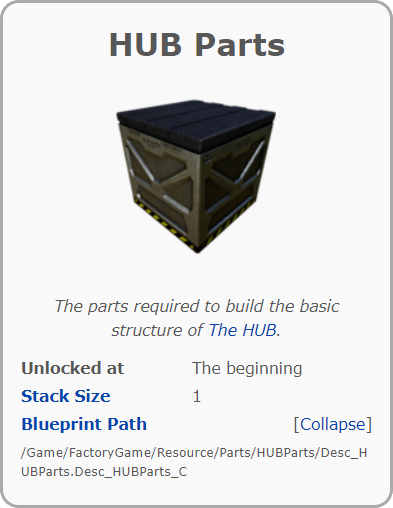
Next, you can go to that blueprint path in FModel to find out what the paths of the relevant static mesh and icon objects are.
For the HUB Parts, this path is
/Game/FactoryGame/Resource/Parts/HUBParts/Desc_HUBParts.Desc_HUBParts_C,
so we should go to
\FactoryGame\Resource\Parts\HUBParts
in FModel to find the relevant files.
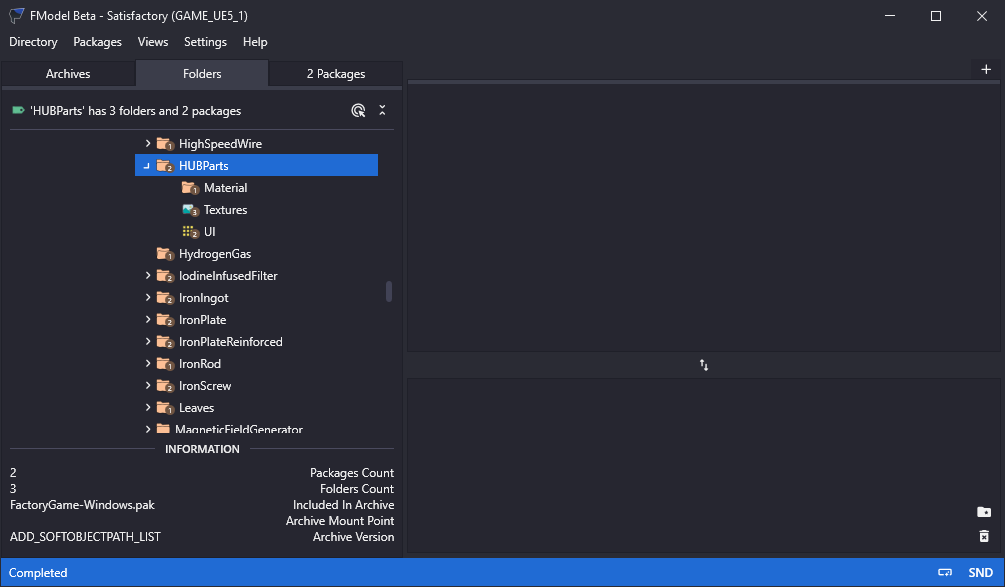
Upon switching to the Packages tab we can see
the FGItemDescriptor (Desc_HUBParts.uasset)
and its static mesh (SM_HUBparts_01.uasset).
Back in the Folders tab, we can see sub-folders that contain its Material Instance, textures, and icons.
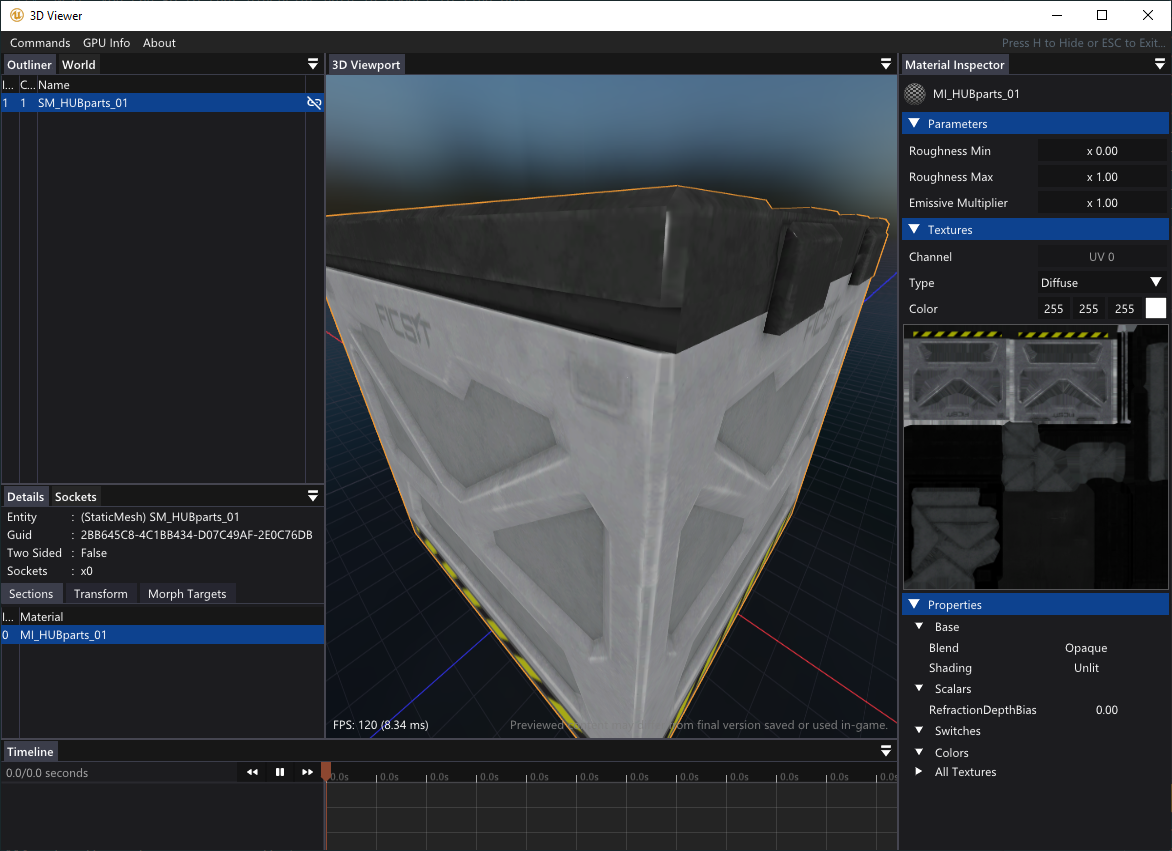
If you want, you can open up the asset to view and make sure you’ve found the right thing.
For this example, make sure you have HUBParts selected in the Folders tab,
then open SM_HUBparts_01 from the Packages tab to bring up the 3D viewer.
Use the Commands button in the top left of the viewer to see navigation keybinds.
Now that you’ve found the location of the asset in the base game, you’re ready to set up the placeholder for it. Within your editor, you should go to the same path that you followed in FModel, creating folders with the exact same name if needed to reach your destination.
Since we are looking to reuse the static mesh and icons of the HUB parts
for our example, we’ll need to put a Static Mesh called SM_HubParts_01 at the path
/Game/FactoryGame/Resource/Parts/HUBParts/
and a Texture called IconDesc_HubParts_256 at the path
/Game/FactoryGame/Resource/Parts/HUBParts/UI/.
|
Notice that the actual content you use for the content you are creating a placeholder for does not matter at all - just that it has the correct name, path, and asset type as the content you want to reference. |
|
If you aren’t sure what asset type the placeholder should be,
look at the |
For the mesh, we can reuse the Plantpot of Knowledge from the Buildable tutorial, which you can copy in from the ExampleMod in your project, or download it again from the above link.
For the icon texture, we can reuse the Soon™ Icon from the Recipe/Schematic tutorial, which you can copy in from the ExampleMod in your project or download it again from the above link.

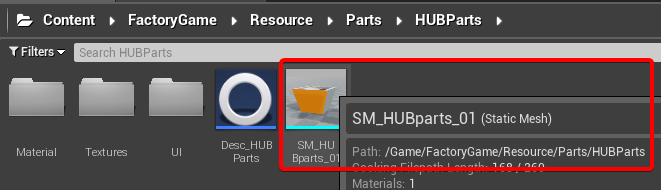
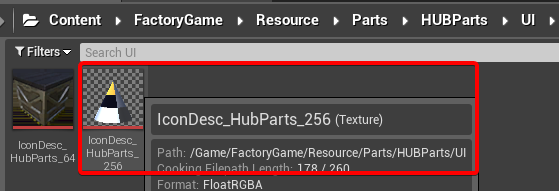
Note that these screenshots also contain placeholders of some other files related to the HUB Parts. You do not need to have placeholders for everything, just the content you want to reference.
Once these placeholder assets are created, you can refer to them from elsewhere in your mod project. When you pack your mod, these placeholders will not be packed, and at runtime they will point to the assets from the base game and contain the correct textures, meshes, descriptors, etc. in place of whatever you used for the placeholder.
Generating a Complete Starter Project
It is possible to create a personal version of the Starter Project that includes most of these base game files accessible from within the editor. This version of the project would include models, textures, and other resources instead of their placeholder versions, allowing you to view them in-editor.
You can read more about this in its section on the Extracting Game Files page.