Updating/Supporting Dedicated Servers
|
If you’re seeing this message, that means this page is not complete yet! This warning will be removed once dedicated server support is actually complete. Expect mistakes and inaccuracies until then. |
This is a condensed guide for Dedicated Server Support, these instructions, either in exact or similar form, are present in the normal setup documentation.
TODO turn this into Updating To SML37
WWise for Linux Dedicated Server Support
You must modify your Wwise install to include the Linux deployment platform and re-integrate Wwise into the project.
The steps for modifying your Wwise install can be found on the Wwise documentation.
Clang Toolchain for Linux Dedicated Server Support
Satisfactory’s dedicated servers typically run on Linux. Cross-compiling from Windows to Linux requires the compatible version of Unreal Engine specific CLang Toolchain to be installed prior to building for Linux Dedicated Servers. The download link for these files can be found on the Unreal documentation page for Cross-Compiling for Linux.
Currently, Satisfactory uses Unreal Engine 5.2.1 with custom changes provided by Coffee Stain Studios.
Therefore, the toolchain version required is -v21 or clang-15.0.1-based.
Download the toolchain from the link above and run it to install the relevant files. The default options that the installer offers are fine.
Project Compilation - Dedicated Server Support
For the following to be packaged, the requisite build (see Project Compilation) must be completed and successful.
For Windows Dedicated Servers, select Shipping_Server and Win64 in the top toolbar, then hit Build.
For Linux Dedicated Servers, select Shipping_Server and Linux in the top toolbar, then hit Build.
Packaging Mods with Alpakit
Note that for the following types of targets to be packaged, the requisite build (see Project Compilation) must be completed and successful.
-
Windows -
Shipping - x64 / Shipping|Win64 -
Windows Server -
Shipping_Server - x64 / Shipping_Server|Win64 -
Linux Server -
Linux_Shipping_Server - Win32 / Shipping_Server|Linux
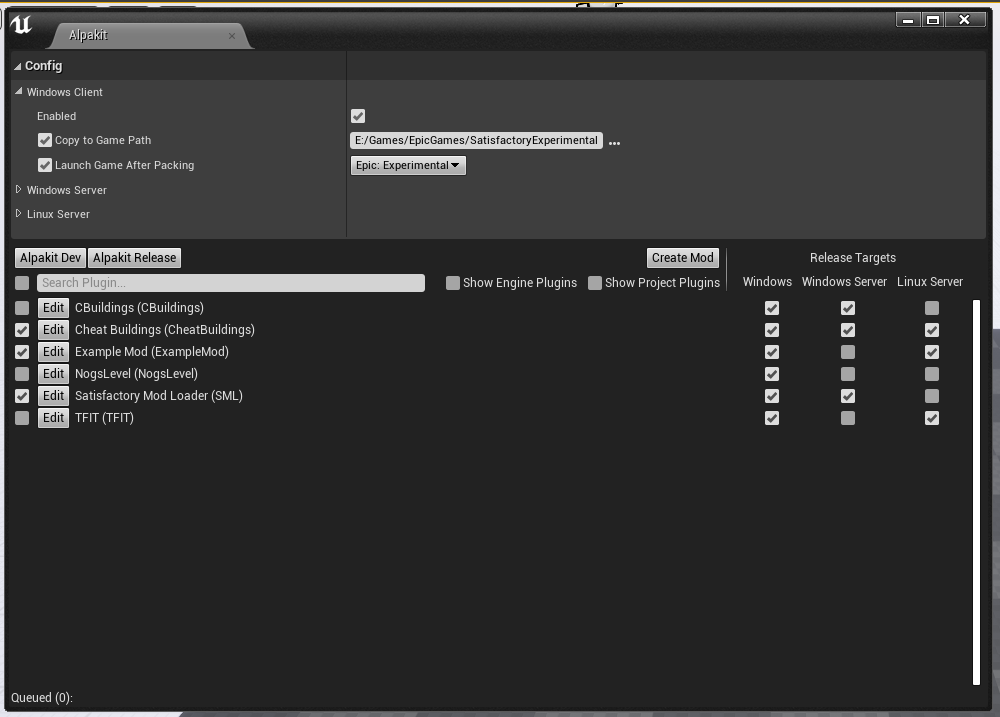
For our local testing, we will only need Windows (the client) checked.
You can press the 'Alpakit Dev' button next to a mod to have Alpakit build and deploy your mod to your Satisfactory installation(s).
Testing your Dedicated Server Mod
In order to start testing on dedicated servers, you will first need to set up your own dedicated server.
Follow the directions on the Satisfactory Wiki to set up a working dedicated server and verify that you can connect to it with an unmodified client.
Note that in order to perform the first time server claiming process you will need to use a client of the game that was launched normally (ex. through Steam or Epic). After the server claiming process is complete you can return to using a copy launched with the launch scripts described elsewhere on this page.
Since the dedicated server will be sharing your own copy of the game’s save folder, attempting to upload saves to it will fail, since the save is already present in that folder.
Since the dedicated server you will be testing with does not need to connect to the internet,
following the wiki’s directions for correctly authenticating with Steam or Epic servers are not required.
The minimum suggested launch arguments for a dedicated server is .\FactoryServer.exe -log -EpicPortal